
Install Vanguard-R
Get started with Vanguard-R, the ultimate add-on suite for iSRO-R. Follow the steps below to download and install.
Download
Download the latest version of Vanguard-R for your system.
Requirements
- .Net 8 Runtime
Important: Billing Configuration
Vanguard Billing is different from Game Billing! You must have both billing systems running simultaneously.
You can assign any random ports to Vanguard Billing - just make sure they don't conflict with your game billing ports.
Example: Game Billing on port 16061, Vanguard Billing on port 18081 (or any other available port).
Tip: Keep both billing servers running at all times for proper functionality.
Installation Tutorial
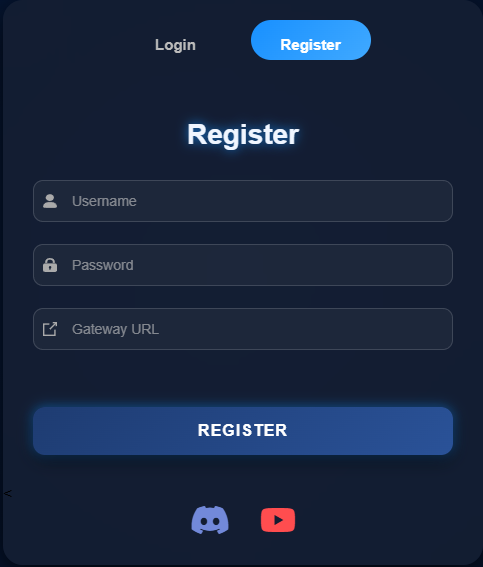
Restore Vanguard Database
Restore the Vanguard database to your SQL Server.
Copy Server Files
Copy the necessary files to your server directories:
- Copy
Modulesfolder intoJoymax_Bins(your server files) - Copy
AgentServercontents (AgentServer.dll, Vanguard folder) into all your agents folders - Copy
GameServercontents (GameServer.dll, Vanguard folder) into all your gameservers folders
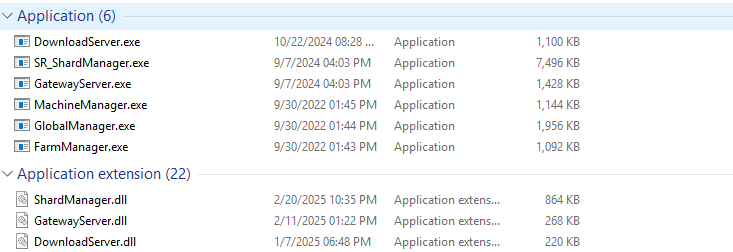
Server files structure
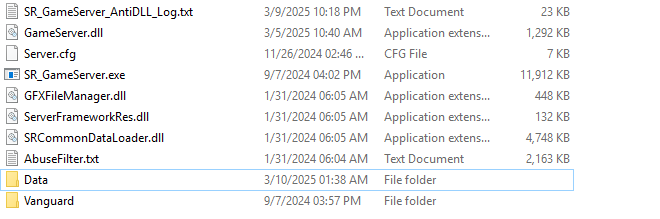
Agent folder structure
Configure INI Files
Go to all Vanguard folders and open the configuration files:
- Edit your connection string (Remove
Trusted_Connection=trueif it doesn't work) - Edit your module key from Profile

Connection string configuration
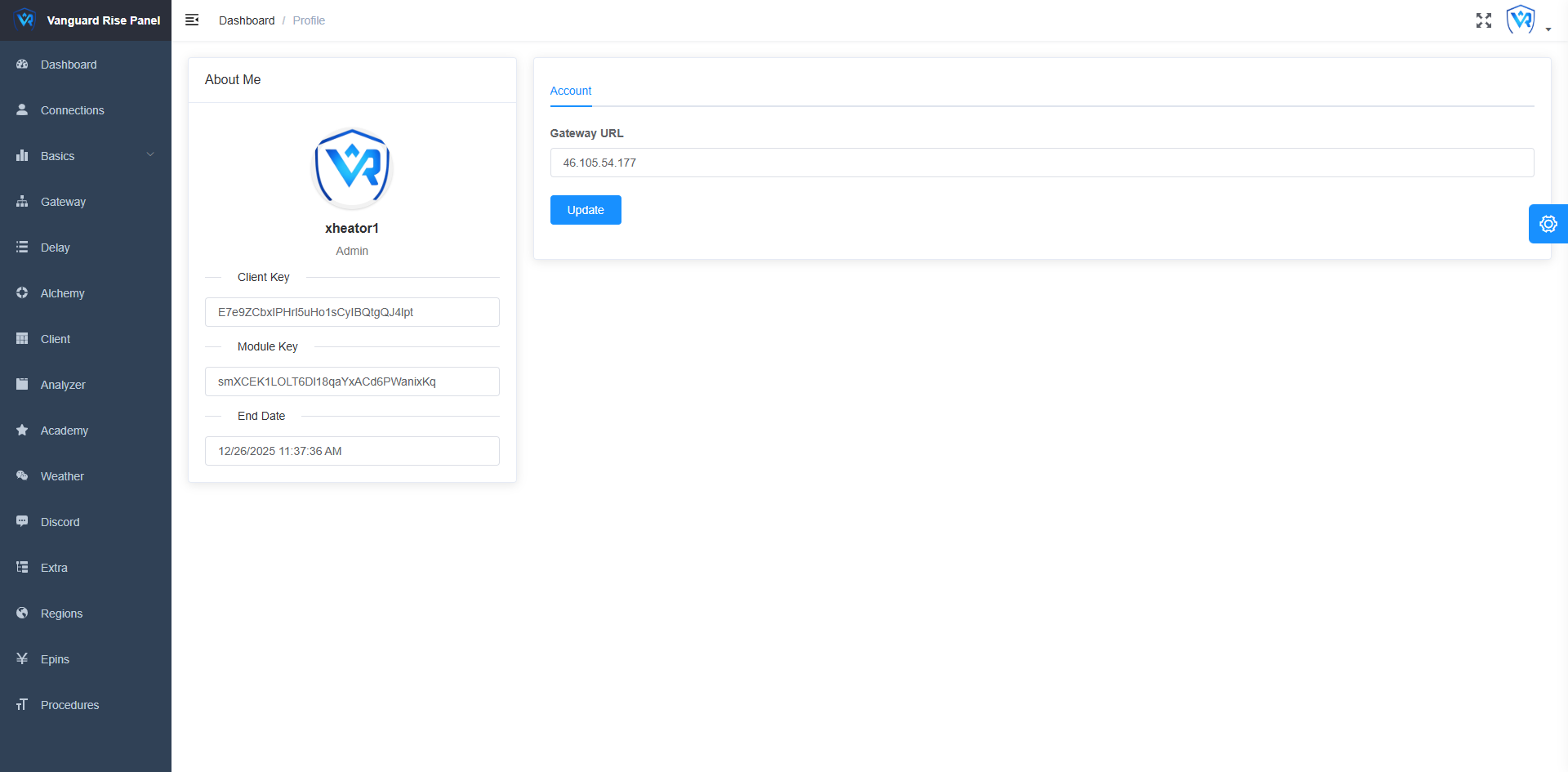
Module key from profile
Client Installation
Now configure the client part:
- Copy
datafolder into your data folder - Copy
particlesinto your particles folder - Copy
settingfolder into your game folder - Copy DLL files (
discord.dll, mb.dll, node.dll, vanguard.dll) into your client folder - Copy
mediafolder and manually addbubbles.txtandmacro mark.txt
Warning: You must add bubbles.txt and macro mark.txt manually, otherwise your client will crash when idle or in hunt state.
Configure Client Settings
Open Settings.ini in
the setting folder and add your ClientKey from the panel.
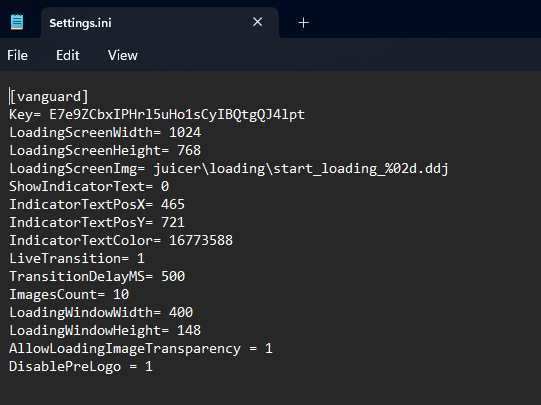
Client key configuration
DLL Injection with StudPE
Download StudPE and inject the DLLs:
- Inject
vanguard.dllintosro_client.exe(Don't inject other dlls, only vanguard.dll) - Inject
gatewayserver.dllintoGatewayserver.exe - Inject
DownloadServer.dllintoDownloadServer.exe - Inject
ShardManager.dllintoSR_ShardManager.exe - Inject
GameServer.dllinto allSR_GameServers.exe - Inject
AgentServer.dllinto allAgentServer.exe - Inject
GlobalManager.dllinto allGlobalManager.exe
Setup Billing API
Download Vanguard-R billing server API and configure:
- Edit
Settings.json - Set your Billing API Panel port through
BillingPortand open it in firewall
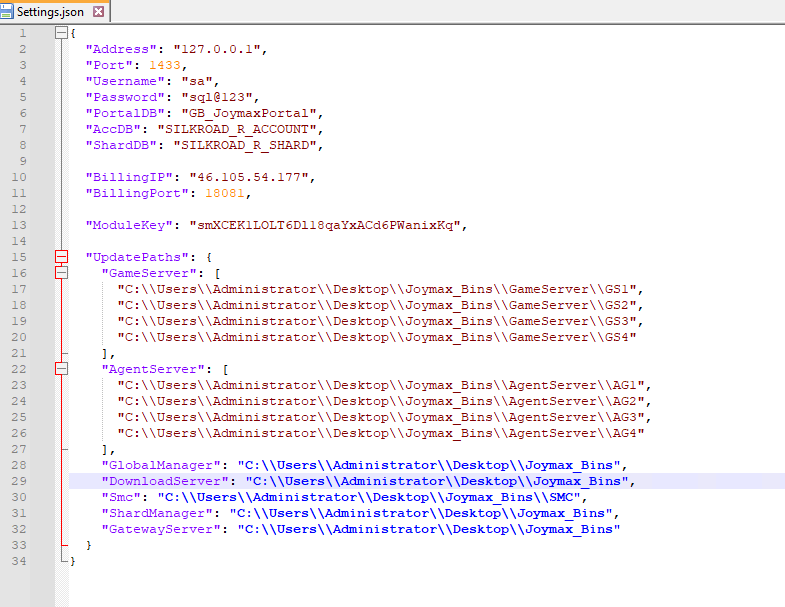
Billing API configuration
Configure Panel Socket
Go to vanguard.dbo._SharedContentConfig
and edit:
PANEL_SOCKET_LOG_IP- Set to your panel server IPPANEL_SOCKET_LOG_PORT- Set to your panel socket port
Complete Setup
Go back to the panel and refresh the page. You should now have access to the whole panel!
Success! Installation complete. Your Vanguard-R is ready to use.
Why Choose Vanguard-R?
Enhanced Security
Advanced protection against exploits and unauthorized access.
Optimized Performance
Streamlined code for maximum speed and minimal resource usage.
Modular Design
Customize your experience with optional modules and plugins.